

CONNECT HELPCENTER · ORDERS AND CUSTOMERS
From the first order
to a satisfied customer.
Managing orders in an online store connects sales, payment, preparation, delivery, and customer communication. In Connect Marketplace, track every stage in one place, with clear records of products, statuses, and agreed next steps.
This section guides you through the seller’s daily work: reviewing and processing orders, shipments with tracking numbers, reservations, quotes, returns, and sales reports. It also explains working with customers, team members, suppliers, delivery drivers, and user groups for B2B sales.
Find instructions for your task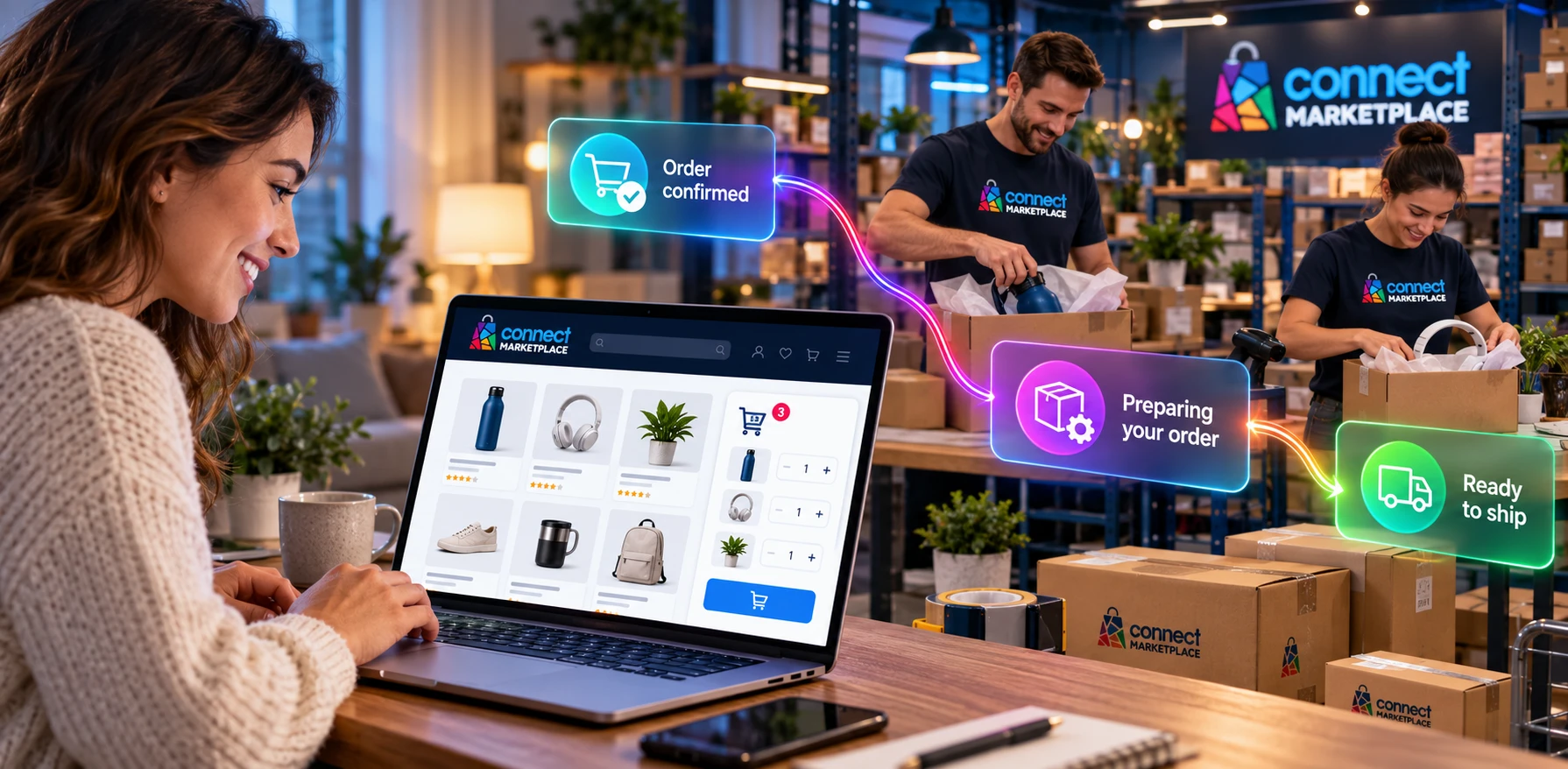
ONE WORKFLOW · CONNECTED OPERATIONS
What does order and customer management include?
An order records what the customer selected, under which conditions, and where the goods or service should be delivered. Further processing connects this data with real events: verifying payment, preparing a package, fulfilling a reservation, or handling an inquiry. Accurate records ensure that the customer and your team know what comes next.
Review and processing
Find the order, check the items and payment, and track the actual processing stage. Filters and advanced search help you identify purchases that require your attention.
Delivery and fulfillment
Link shipped quantities to the shipment, carrier, and Tracking ID. For reservations, check the time slot, capacity, and service fulfillment.
Customer relationship
Respond to messages, track quotes, calls, and requests, and use purchase history to provide an accurate response. Record the agreement in the relevant record as well.
What does order processing look like from start to finish?
- 01
Find and check the received order
Open Orders → Orders. Check the number, customer, products, variants, quantities, address, payment method, and delivery method. Compare the order status with the actual payment status and fulfillment capability.
- 02
Prepare the goods or confirm the service appointment
Coordinate availability and the responsible person. Read the customer’s notes, and record agreements and internal tasks in the appropriate place. For a booking purchase, check the date, time, and reserved quantity.
- 03
Create a shipment and notify the customer
Include only the quantities you are actually shipping in the shipment details. Enter the tracking number and carrier, and check the selected order status and the shipment notification checkbox. One order can have multiple shipments.
- 04
Track completion and handle any request
Check fulfillment, payment, and documents. Handle cancellations, returns, or exchanges through the relevant process. Do not conclude that money has been refunded merely because the request status has changed.
- 05
Analyze results and maintain the customer relationship
Review unresolved items and sales reports. For repeat purchases and wholesale, use approved user groups and verified price tiers.
Important when shipping: the new shipment form may initially have “Do not change” selected for the order status. If the shipment is going out for delivery, explicitly select the appropriate “Shipped” status. The shipment notification is a separate option from notifications sent according to status rules.
Distinguish between the order, payment, shipment, and request
Statuses help organize work and, depending on the settings, trigger notifications to customers and responsible persons. Therefore, change them when the actual event occurs, while checking the effect on related records.
- Order status describes the processing stage of the purchase. “Paid,” “Processing,” “Shipped,” and “Completed” have different meanings.
- Payment confirmation requires verification through the appropriate payment channel. An operational label is not a substitute for an actual payment.
- Shipment links specific items and quantities to a shipment. Its status and shipment number differ from the order status and the carrier’s Tracking ID.
- Booking, quote, cancellation, and RMA have their own stages and statuses. An approved quote is not a completed checkout, and an approved return is not proof of a bank refund.
ALL GUIDES IN ONE PLACE
What do you want to do?
Choose a topic according to your task. The detailed guides include paths through the administration area, numbered screenshots, step descriptions, and a final check. Screenshots use the English interface and sample data, while localized explanations appear alongside them.
Orders and shipments
Order overview, statuses and advanced search
Find a purchase using filters and understand what each status means.
Open guideOrder details and processing workflow
Review items, payment, contacts, and notes, and determine the next step.
Open guideCreating a shipment, Tracking ID and customer notifications
Create a shipment, enter the tracking number, and check the status and customer notifications.
Open guideShipment overview and shipment details
Track individual shipments, quantities, and the details of a specific shipment.
Open guideConnect ORDER Print
Learn how to install and use Connect ORDER Print for working with orders.
Open guideReservations, quotes, and customer requests
Booking orders and reservation processing
Check the booking date, time slot, and quantity, and link the reservation to the purchase.
Open guideOrder Cancellation Requests
Read the reason, check the processing stage, and record the cancellation decision.
Open guideQuote requests and negotiations with the customer
Prepare prices, send a quote, and track negotiations through completion of the purchase.
Open guideProduct Returns and RMA Requests
Process returned items, exchanges, or returns, and check the final settlement.
Open guideCustomer Callback Requests
Assign a responsible person for the call and record the outcome of the conversation.
Open guideCustomers, communication, and B2B
Customers: overview, details, and purchase history
Find a customer and review the available data and their purchase history.
Open guideUser groups
Distinguish groups for special prices from administrator roles and permissions.
Open guideMessage Center: conversations with customers and administrators
Track conversations with customers and Connect administrators, and check sent replies.
Open guideTeam, supply, and sales results
Store Administrators and Access Management
Review team members and track account additions, activity, and access.
Open guideSuppliers and connection with the Digital Catalog
Understand seller supply and prepare a request to connect a catalog source.
Open guideDelivery drivers: accounts and working with deliveries
Check the profiles, shifts, and availability of your own delivery drivers.
Open guideSales reports and order analysis
Compare product, category, and other metrics over the selected period.
Open guideCustomers, B2B sales, and your team members
Connect Marketplace brings together multiple stores and registered users. Sellers cannot access all platform users: when working with customers, they see people associated with purchases in their store. For accurate delivery, check the data in the specific order; for the customer relationship, check the available purchase and conversation history.
Customer user groups can link approved members to special prices and quantity discounts. This is useful for B2B and wholesale price lists. Registration alone does not grant such a benefit: the customer must be logged in and have the appropriate active membership.
Store administrators have separate accounts and permissions for business tasks. Suppliers provide the offer source, while delivery drivers participate in delivery fulfillment through the active module. Each role has its own purpose; connecting a supplier alone does not automatically include importing or ordering from the Digital Catalog.
Daily work checklist
- New orders and purchases awaiting payment, confirmation, or preparation have been reviewed.
- The exact items, quantities, contact, address, and agreed time slot have been checked.
- Shipped quantities have been recorded in shipments, with the correct carrier and Tracking ID.
- Statuses and notifications match the actual processing stage.
- Open quote, call, cancellation, and return requests have a responsible person and a next step.
- Customer replies contain verified information and a clear agreement.
- Reports are compared for the same period and according to understandable metrics.
Frequently asked questions about orders and customers
Where can I find the order mentioned by the customer?
In the order list, start with the order number, email address, or another known detail. Check the store and remove old filters. Advanced search allows you to narrow results by status, date, and additional criteria.
Does creating a shipment automatically change the order status?
Check the status selection in the form. If “Do not change” remains selected, do not expect the order to automatically receive the “Shipped” status. Before confirming, also check the shipment notification separately.
What is the difference between cancellation and an RMA return?
A cancellation request is used to consider stopping the purchase process. An RMA tracks the return or exchange of specific products and quantities from the order. Choose the process according to the actual delivery status and the customer’s request.
When does a quote become an order?
From a valid quote, the customer transfers the agreed items and prices to the cart and completes the purchase. Only then do you check the resulting order and payment. Accepting the price alone does not complete the purchase.
Can sellers see all registered platform users?
No. The customer overview is tied to the relationship with your store and the available permissions. Registering on the platform does not mean that the user has already purchased from you.
Why can’t I see all the functions from the guide?
Menus and actions depend on permissions, active modules, and store configuration. For an unavailable function, contact Connect Support with the store name, subject, and task description.