

CONNECT HELPCENTER · ORDERS AND CUSTOMERS
Customers: details, purchase history, and relationship with your store
Find a customer, open their profile and related orders, and understand the difference between a user account, the details of an individual purchase, and the shared Connect Marketplace database.
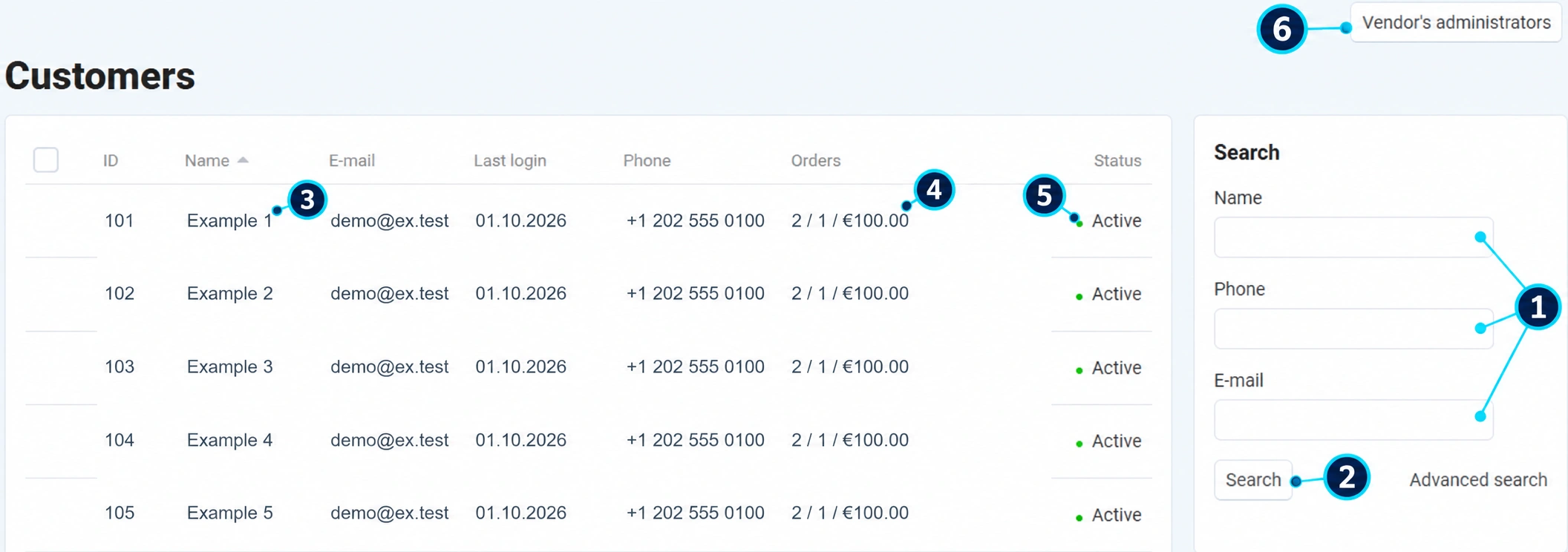
The screenshots use the English interface and sample data. The numbers link locations in the image to the localized instructions. Click the image for a larger view. Actual orders and customer data were not modified for the demonstration.
Which customers are visible to you
Open Customers → Customers. Connect Marketplace has a shared database of registered users, but not all platform accounts are available to sellers. You see customers associated with purchases in your store. Registering on the platform alone does not mean that the user is already your customer.
The profile describes the user account, while the address and contacts saved with an order describe the specific purchase. Check the details from that order for delivery.
- 01
Search for a customer
In Name, phone, or email (1), enter a known detail. Email helps distinguish people with similar names.
- 02
Apply the search
Click Search (2). If there are no results, remove other criteria and check the store.
- 03
Open the profile
Click the name (3). The account ID does not have to match the order number.
- 04
Review orders
The summary (4) shows the number created, the number the system counts as paid, and the corresponding amount. The links lead to the history.
- 05
Distinguish account status
Status (5) refers to the account, not to payment or delivery of the last order.
- 06
Open administrators separately
The Seller Administrators button (6) leads to store staff, who have a different purpose and access permissions.
What to check in the profile
- General: identity, email, language, profile type, and available contacts and addresses. Some fields in the vendor view are read-only.
- History: registration, first and last purchase, number of orders, and amounts. For specific items and deliveries, open the order.
- Last login: account activity; it is not confirmation that the customer has read a particular message.
- Additional tabs: depend on modules and permissions. Use personal data and exports only when necessary for processing.
From a customer inquiry to a verified response
- 01
Confirm the purchase
Compare the order number and the customer's identity. Do not conclude based only on a similar name.
- 02
Open the history
Find purchases from your store and check the date; a customer may have multiple open orders.
- 03
Check the specific order
For the address or contact details before delivery, check the purchase details. Editing the profile later does not mean that shipments already created have been changed.
- 04
Reply in the related conversation
In Message Center include the purchase number and the next step. Process returns, cancellations, and delivery in the corresponding module.
- 05
Record the outcome
Save a note related to the processing with the order. If the profile field is locked, contact support instead of trying to change someone else's account through other paths.
Registration and B2B prices
A logged-in user may receive special prices based on active membership in the customer group. Registration does not automatically assign an approved wholesale group. Check membership and the product pricing rules.
The number of paid orders is based on system statuses. Resolve payment discrepancies by checking the transaction, not just the profile summary.
Can't find the customer?
Check whether there is a purchase specifically from your store, whether the same email is being used, and whether the purchase was made as a guest. A guest purchase may not have the same profile as an account registered later. Give support the order number and the issue, without unnecessarily exporting the database.