

CONNECT HELPCENTER · ORDERS AND CUSTOMERS
Suppliers and the Digital Catalog: the source of the offer for sellers
Understand the relationship between suppliers, the Digital Catalog, and your store, and prepare the data required for Connect administration to link the appropriate product source.

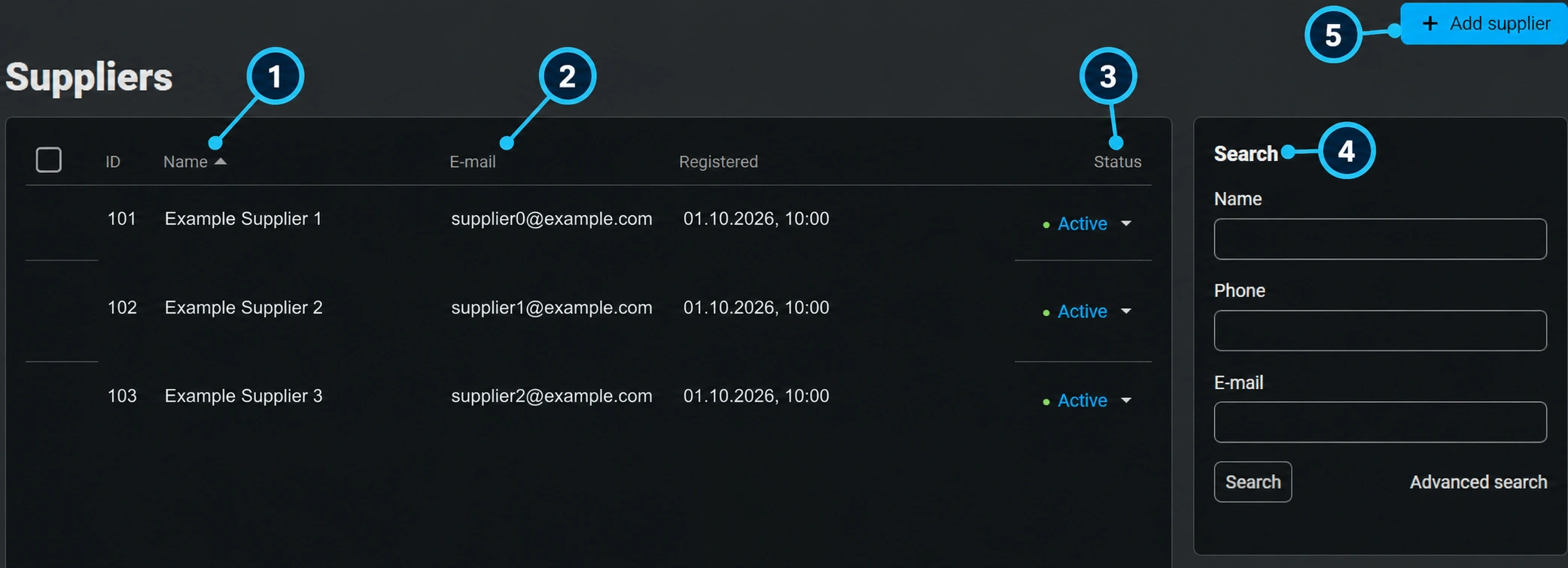
The screenshots use the English interface and sample data. Numbers link locations in the image to the localized instructions. Click the image for a larger view. Actual orders and customer data were not changed for the demonstration.
The supplier, seller, and customer have different roles
Supplier provides products and supply data for the seller. In this model, it does not sell directly to the end customer through your store. Seller shapes its offer, terms, and relationship with the customer. Digital Catalog represents a source of items that, when the appropriate connection is available and agreed upon, can be included in the sales process.
The mere existence of a supplier in the records does not mean that imports, automatic price and inventory updates, or automatic order submission to the supplier are enabled. Digital Catalog functions are activated according to the module actually available and the agreed integration.
What the supplier record looks like
The screenshot shows Connect administration → Customers → Suppliers, with sample data. This menu is not available in the reviewed vendor account, so this is not a path that every seller should open themselves. Request the connection from the Connect team.
- 01
Supplier identity
The name (1) distinguishes offer sources. In your request, provide the full business name, not just the brand name, which may have multiple distributors.
- 02
Contact
The email (2) is used to record the responsible contact. By itself, it does not mean that an automatic order flow is enabled.
- 03
Record status
The status (3) describes the activity of the supplier record. It is not the same as the availability of each item or permission to sell it.
- 04
Finding the source
Connect administration finds the supplier by name, phone, or email through the search (4). The seller provides these details if available.
- 05
Adding and connecting
The add action (5) belongs to the responsible administration. After the record is created, the catalog source and connection method must be agreed separately.
What to prepare for a connection request
- The supplier's business name and contact details, as well as the name of your store.
- Permission to use the catalog, photos, and descriptions, as well as the sales regions.
- An example of the data source and the format the supplier actually offers, such as a file or documented integration.
- Stable item codes, EAN/GTIN if available, variants, and the method for linking the same product across updates.
- Purchase prices, currency, tax information, and sales terms that need to be verified from a business perspective.
- Availability, warehouses, delivery lead times, and the frequency of data updates.
- The supplier's ordering, delivery, claims, and returns procedures; who is responsible for each step.
From source to published offer
- 01
Send a request to the Connect team
Specify the source and desired scope. Do not send access secrets in a public conversation or in images.
- 02
Agree on what the integration actually does
Confirm whether only basic data or also prices, inventory, and changes are imported. Record the update frequency and what happens when an item disappears from the source.
- 03
Check a product sample
Compare identifiers, variants, photos, categories, features, and prices. Categories and their mapping are coordinated with Connect administration.
- 04
Align the sales offer
Check the margin/selling price, delivery, and availability. The supplier's purchase data is not automatically the final price for the customer.
- 05
Publish after verification
Use the add from the Digital Catalog procedure when it is enabled. Do not manually overwrite data that active synchronization will later import again without an agreed rule.
- 06
Monitor the actual supply
After a purchase, ensure ordering and supply according to the agreed flow. Do not assume that a regular customer order automatically orders goods from the supplier.
Price or inventory discrepancy
Record the item code, expected data, display in the store, and the time the source was checked. Check whether it is an update delay, currency, packaging, or another variant. Until availability is clarified, do not confirm a lead time that the supplier has not confirmed.