

CONNECT HELPCENTER · ORDERS AND CUSTOMERS
Delivery drivers: accounts, availability, and delivery tracking
Set up your own delivery driver profile, check shifts and availability, and track assigned orders and delivery records through the Delivery drivers module.
The screenshots use the English interface and sample data. Numbers link locations in the image to the localized instructions. Click the image for a larger view. Actual orders and customer data have not been modified for demonstration purposes.
When to use the delivery driver module
Open Customers → Delivery drivers → Delivery drivers. This section is used to organize people who perform deliveries within the enabled module. A delivery driver profile differs from a customer, store administrator, and external carrier such as a courier service.
The carrier and Tracking ID in the shipment track the package. The delivery driver account tracks the person and assigned jobs. Therefore, creating a profile does not replace creating a shipment and does not by itself include automatic assignment of all orders.
The list provides delivery driver search, email, phone, store, and period filters. If you have no records, check the filters first. To add a new delivery driver, open Add delivery driver.
Filling in the delivery driver profile
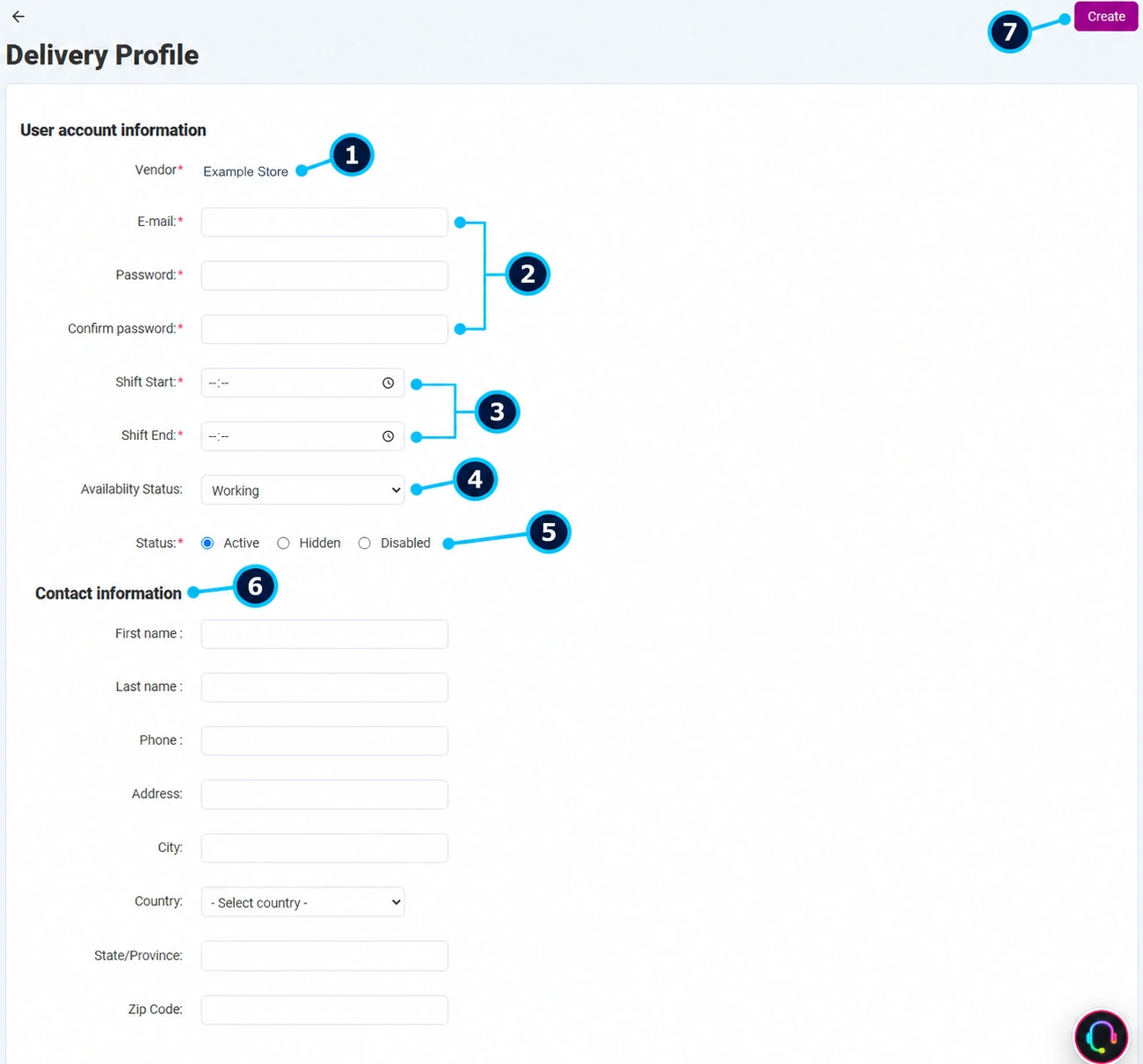
The screenshot shows an empty form with a sample store name. No account was created and no password was saved for these instructions.
- 01
Check the store
The vendor field (1) must belong to the store for which the person makes deliveries. If the selection is unavailable or incorrect, clarify it with Connect administration.
- 02
Prepare access
The email and password fields (2) belong to the individual delivery driver account. Enter a unique contact and securely provide access to the authorized person. Do not use a shared administrator account.
- 03
Enter the shift
The start and end times (3) indicate the planned working hours. Check both times; the shift alone does not guarantee that a specific order has been assigned.
- 04
Set availability
Availability (4) distinguishes a person who is working from a person who is not currently working. This is operational data, separate from account activity.
- 05
Set the profile status
Active, hidden, or disabled (5) refers to the record/account according to the module rules. When the person stops working, use the agreed access revocation procedure, after first checking for open deliveries.
- 06
Enter contact details
The first name, last name, phone, and address (6) must be accurate. Select the country and the corresponding location details so the team does not confuse people with the same name.
- 07
Create and verify
Click Create (7) only after checking the required fields. Confirm the success message, find the profile again, and check the saved values. The delivery driver should then verify their approved access.
Assigning and tracking orders
- 01
Prepare the order for delivery
Check the address, contact details, contents, payment, and agreed time. Record any special customer instructions needed to complete the delivery.
- 02
Check the available delivery driver
Compare the shift, availability, and already assigned jobs. An active account does not mean that the person is currently available.
- 03
Assign through the available module action
If assignment on the order/module is enabled in your configuration, select the appropriate person and confirm the assignment. If the action is not visible, contact Connect support; creating a profile is not proof that the order has been accepted.
- 04
Check assigned orders
In the delivery driver view, review their orders using the available actions. In the advanced order search, the Delivery driver filter allows you to verify the associated purchases.
- 05
Track the outcome
Check whether the delivery was completed or whether there is a reason for failure/cancellation. The person's status, shipment status, and order status are different types of data that must be reconciled according to the actual event.
- 06
Complete the record
After completion, check the order, payment, and any applicable settlement obligations. Do not mark a purchase as paid just because the package was delivered.
Additional views in the module
- Delivery driver accounting: a record of accounting data and associated deliveries according to the configuration.
- Earnings/payments: a view of recorded amounts. A request or accounting record is not by itself confirmation of a bank payment.
- Ratings: feedback about delivery drivers if the feature is used.
- Canceled orders and reasons: operational views of the delivery module. They do not replace a customer's cancellation request or RMA return.
If assignment or display does not work
Check the store, account activity, availability, and filters, and verify that an assignment exists for that specific person. Send support the order number, action name, and system message. Location tracking and automatic assignment depend on the integration and access actually enabled; the profile record alone does not include them.